
Downloading and running a Neptune demo
Windows will probably warn you once or twice before it lets a Neptune installer run, and may look as though it has blocked the download altogether. Nothing is wrong with the file. This page shows what you will see and what to click.
Why it happens
Our installers are not code signed. Code signing is a certificate that tells Windows who published a program, and we do not currently buy one. Without it, Microsoft Defender SmartScreen treats the file as an unknown publisher and warns you. Both Microsoft Edge and Google Chrome do this, and they also flag any file that has not been downloaded many times before, which applies to specialist software like ours.
If you would rather have this as a printable document, there is a PDF version.
Step by step
The screenshots below are Microsoft Edge. Chrome is very similar, with the same wording on the buttons. If your browser downloads the file with no fuss at all, skip straight to step 5.
-
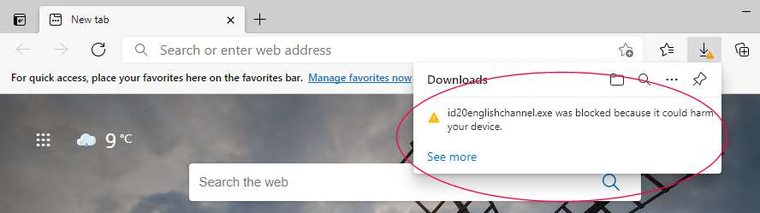
The download looks blocked
Edge puts the file in the Downloads panel with a warning that it was blocked because it could harm your device.
-
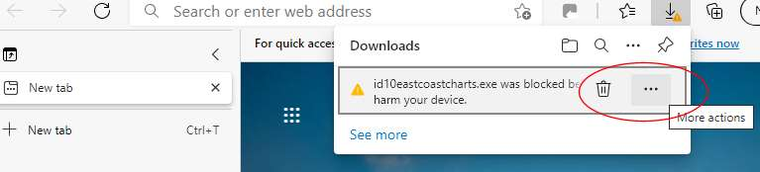
Hover over the file and open the extra options
Move the mouse over the blocked file. A dustbin icon and three horizontal dots appear to the right of it. If you do not see them, click See more first. Click the three dots.
-
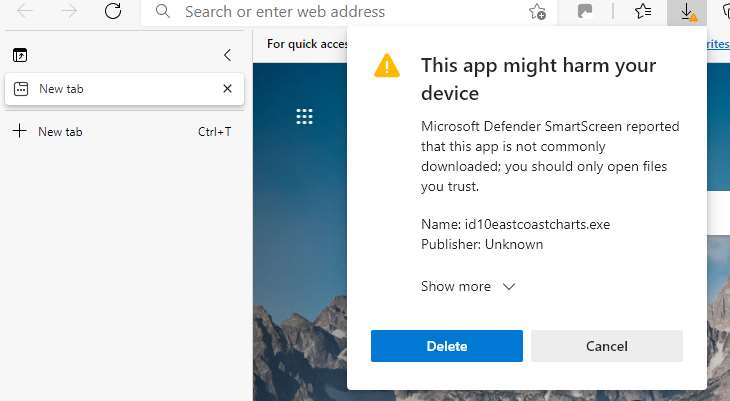
Choose Keep
A warning headed This app might harm your device appears. Click Show more.
-
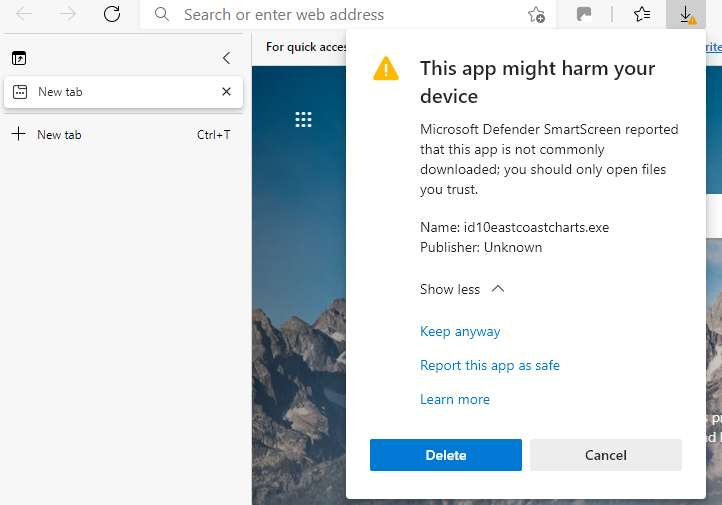
Keep anyway
More options appear. Click Keep anyway.
-
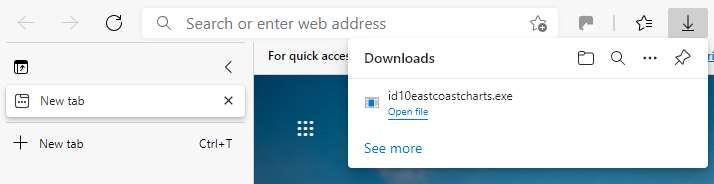
Open the file
The file is now kept, and the Downloads panel offers Open file. Click it. You can also run it later from your Downloads folder.
-
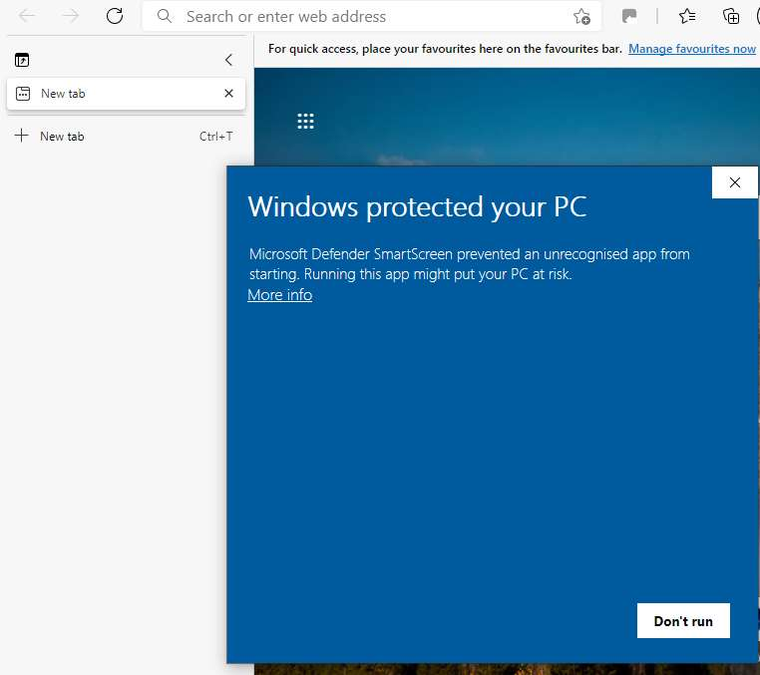
Windows protected your PC
Windows Defender SmartScreen now says it prevented an unrecognised app from starting. Click More info.
-
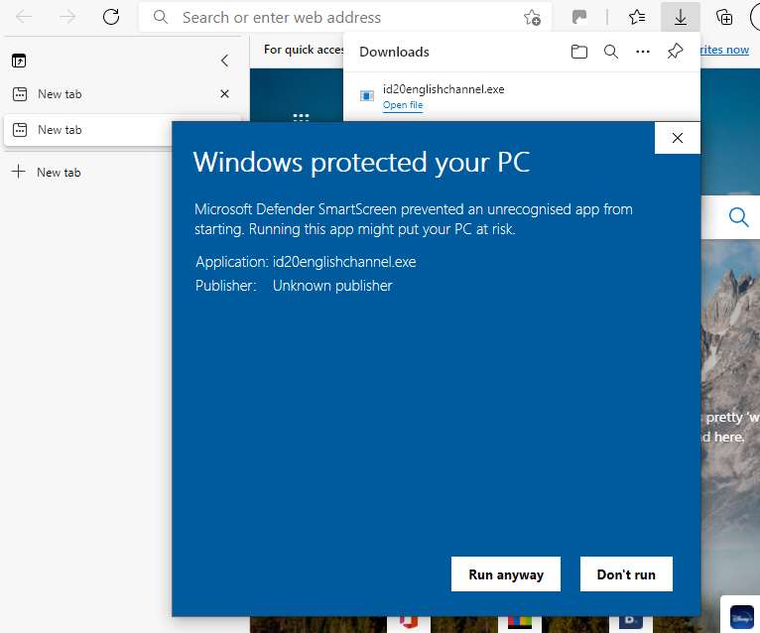
Run anyway
The dialog expands to show the file name and Unknown publisher, and a Run anyway button appears. Click it.
-
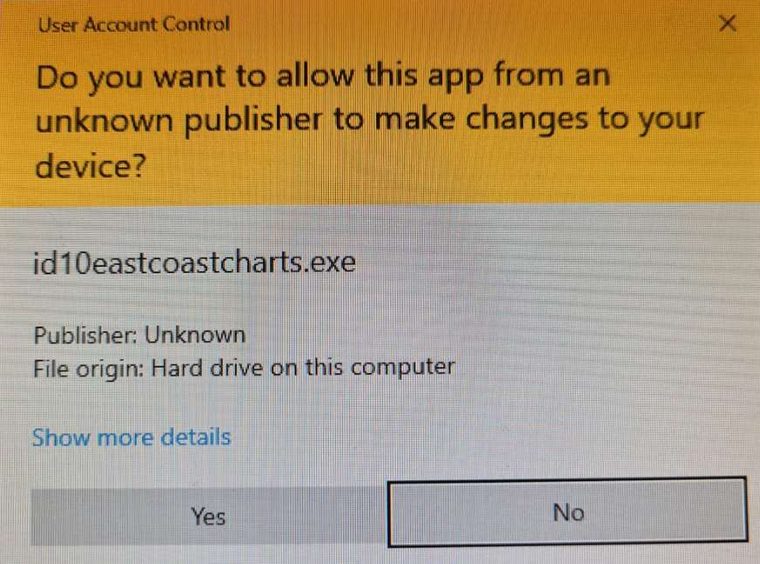
Allow the installer to make changes
Finally Windows asks whether to allow the app to make changes to your device. Click Yes and the installer runs.
A word of caution
These steps deliberately step past a Windows security warning, and that is only sensible when you know where the file came from. Do it for a Neptune installer downloaded from this site. Do not make a habit of it for files that arrive by email or from a site you do not recognise, because that warning is doing a useful job the rest of the time.
If you get stuck
Telephone +44 (0)118 988 5309 or email sales@neptunenavigation.co.uk and we will talk you through it.